
Junk Files
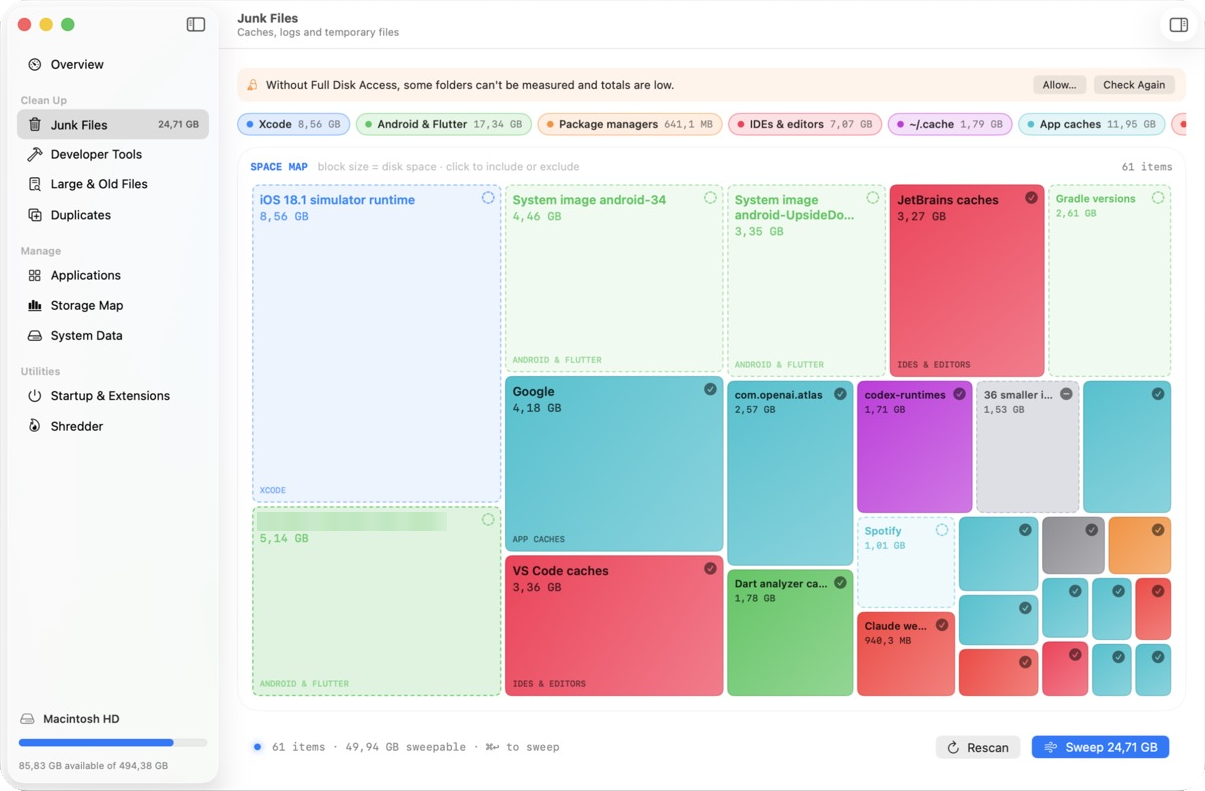
Caches, logs and temporary files from more than 350 places, on a map sized by how much space they take. Recommended items are picked for you; everything else waits for your say.
Free and open source · macOS 14 or later
Mac Cleaner finds caches, leftovers, old downloads, duplicates and developer clutter, and shows you every item with its size. Nothing is removed until you have reviewed it, and your own files go to the Trash so you can put them back.
Not notarized by Apple yet, so macOS asks you to confirm the first time you open it. Here's how.

Caches, logs and temporary files from more than 350 places, on a map sized by how much space they take. Recommended items are picked for you; everything else waits for your say.
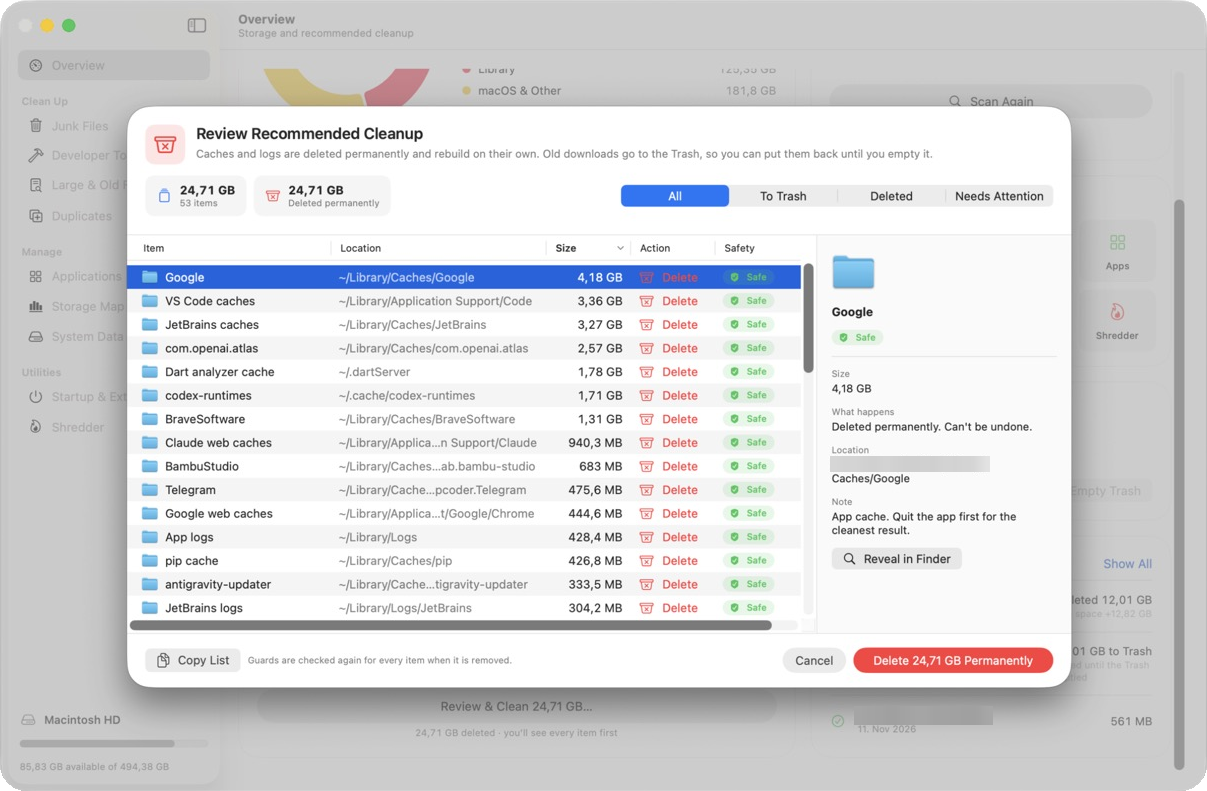
One sheet lists every item: its full path, size, whether it is deleted or moved to the Trash, and a safety label. Items marked Review or In Use need an extra tick, and Cancel is the default.
See how much you reclaimed each week, how your free space is trending with a forecast of when it reaches your alert level, and which kinds of junk take the most room. The forecast also shows in the menu bar panel.

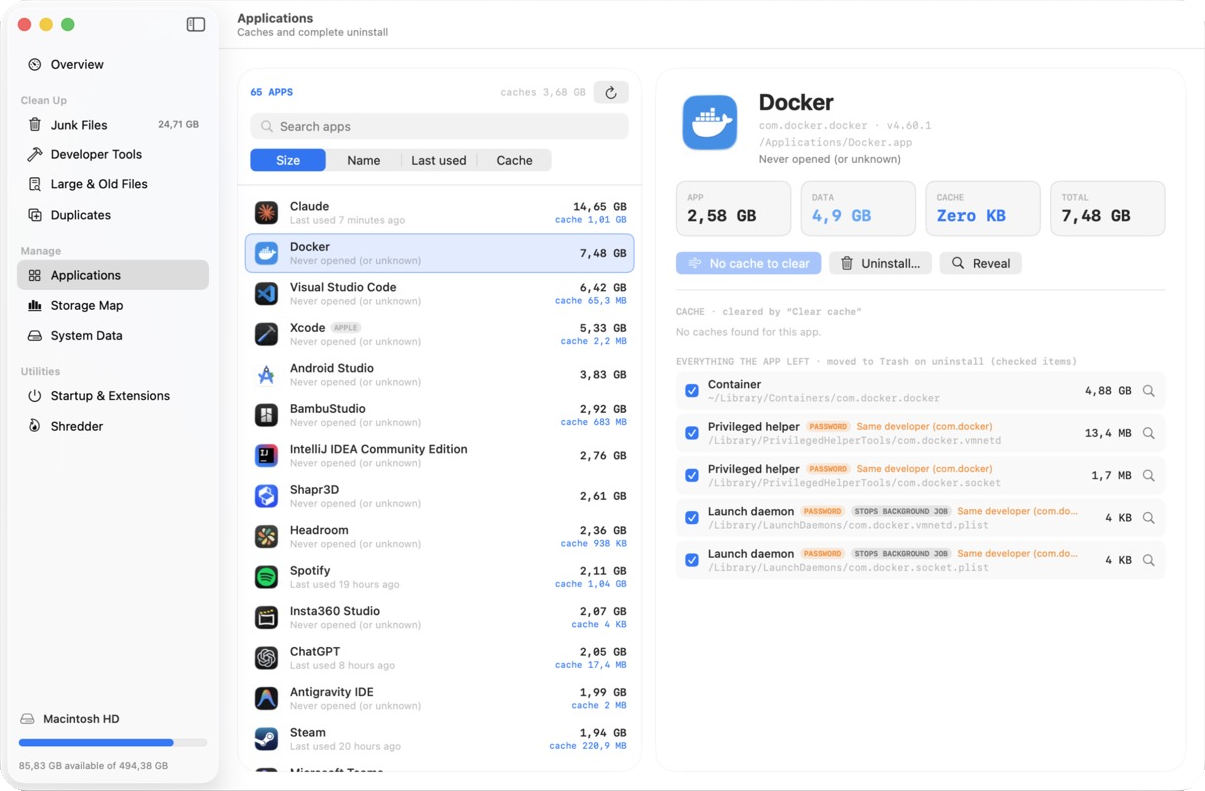
Clear an app's cache, or uninstall it completely, with the data, helpers and launch items it leaves behind. Items that need your password are marked before you start.
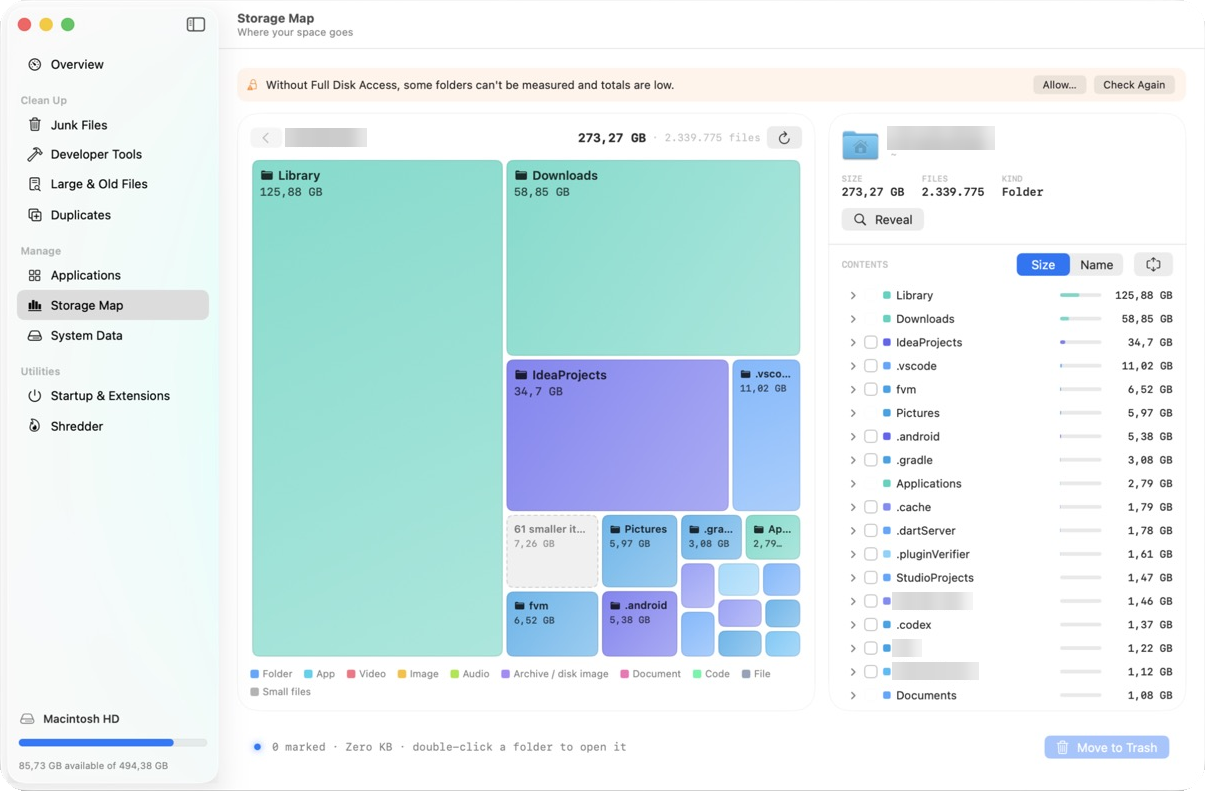
Explore every folder by size, open the biggest ones, and move what you no longer need to the Trash.
Big files and files you haven't opened in months.
Identical files compared by content. One copy always stays.
Time Machine snapshots, device backups, Mail and Messages attachments.
What starts with your Mac, and plug-ins from other developers.
Delete files permanently, without the Trash.
The menu bar turns orange, then red, before you run out.
Free space, the forecast, Clean Now, and your last and next clean, one click away.
A safe cache clean every day or week at your time. If your Mac was asleep, it catches up when it wakes.
Disk cleaners have earned a bad name with fake scans and scary warnings. Mac Cleaner does the opposite: it shows real sizes, explains every item, and asks before it acts.
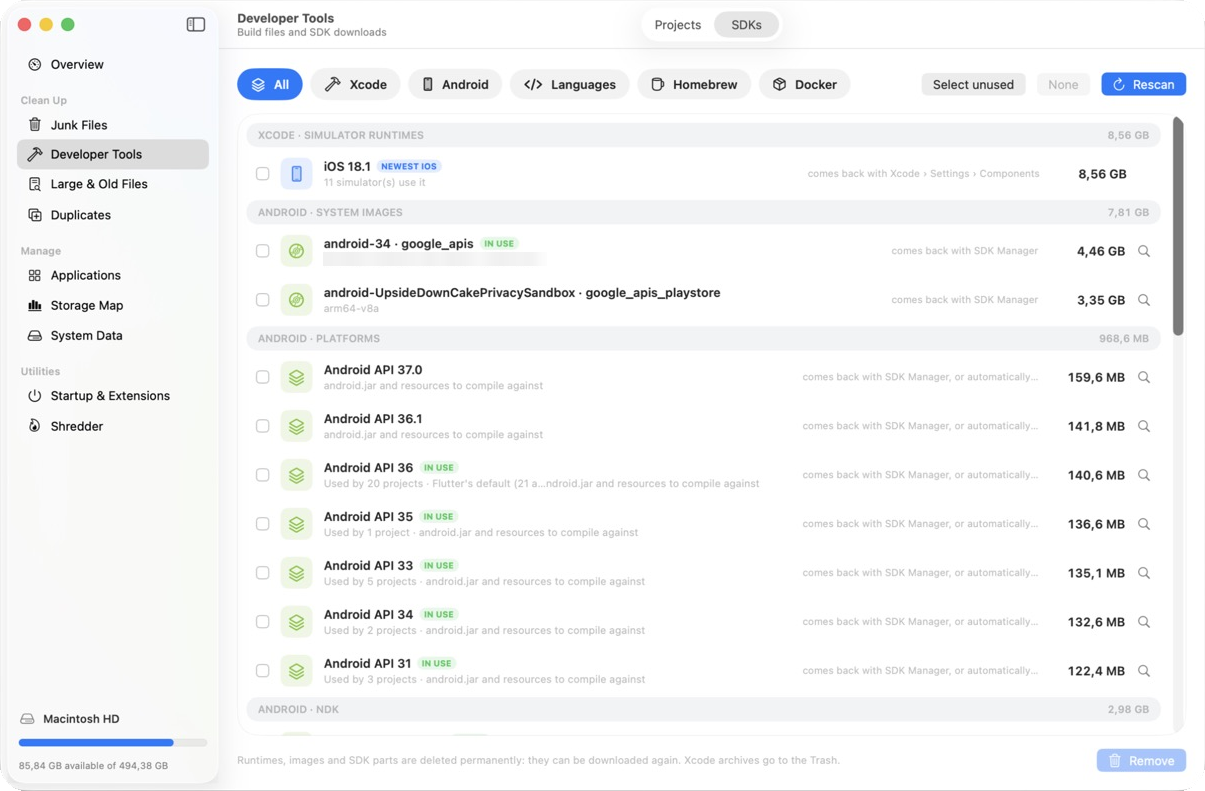
Build folders, simulators and toolchains add up fast. Developer Tools finds them and tells you what your projects still use.
Build folders in your code projects, with how long since you touched each one: node_modules, build, Pods, .gradle, target, .dart_tool, Python caches, .NET bin/obj and more.
Old iOS simulators, Android SDK parts, Docker data, and versions installed with nvm, fnm, Volta, pyenv, rbenv, rustup, SDKMAN and asdf. Versions your projects need are marked In Use.
Every formula and app you installed with brew, its size and what still needs it, removed through Homebrew so it stays in sync.
Install the mac-cleaner command from Settings › Integrations. Every cleaning command shows the list first and asks you to type yes.
mac-cleaner status
mac-cleaner scan
mac-cleaner clean --recommended
mac-cleaner projects --idle 6Connect Claude, Cursor, Codex, VS Code, Windsurf or Gemini with one click. Ask “what's taking up space?” or “clean my old Xcode simulators”.
Your assistant follows the same rules as the app: it shows you the list first and removes nothing until you say yes. Protected items are off limits.
Often you don't. macOS manages a lot on its own. Mac Cleaner is useful when you are short on space, especially with developer tools, simulators and old downloads, and you want to see exactly where the space went before removing anything.
You see every item before anything happens. Caches and build folders are deleted because apps rebuild them; everything else goes to the Trash. Your personal folders are never part of junk cleaning, and you can protect any folder or file.
Anything that went to the Trash can be put back from the Overview or from Finder until you empty the Trash. Caches and build folders are recreated by their apps and build tools when needed.
It's optional. Without it, macOS hides the Trash, Mail, Messages and other apps' data, so some sizes come out low. You can turn it on or off any time in System Settings › Privacy & Security › Full Disk Access.
The app is signed but not yet notarized by Apple, which needs a paid developer account. Follow the install steps once and macOS remembers your choice.
None. There are no accounts and no analytics. Cleanup history and settings stay in your Library folder. Once a day it asks GitHub whether there's a new version; that request carries nothing about you, and you can turn it off in Settings › General.
Mac Cleaner tells you when a new version is out and shows what changed. Click Install and Relaunch: it downloads the new version, checks it against the release's checksum, and reopens. Or choose Mac Cleaner › Check for Updates….
Scan and report sizes. To clean, they show you the list and wait for your confirmation, under the same rules and protections as the app.
Quit it and drag it from Applications to the Trash. If you installed the Terminal command, run mac-cleaner uninstall-command first.